

Navigate
Products
Download
eShop
Upgrade
About
Training
Support


Navigate
Products
Download
eShop
Upgrade
About
Training
Support


This tutorial explains how to split a design using the initial and ending stitch boxes. The Initial Stitch and Ending Stitch boxes are located on the Main Toolbar at the top of Editor window. They allow to specify the first stitch number and the last stitch number of selection. This selection can be then separated from the main object.
Note: Other ways of splitting are explained in the following tutorials: Interactive Free-Hand Splitting, Split Before/After Color, Separate Color, Auto-Split, Auto-Split Along Hoop Boundaries and Saving and Sewing of Split Designs
1 - Run Embird and click "Editor" menu to switch to Editor window.
2 - Select "File > Open" menu to open the design which you want to split.
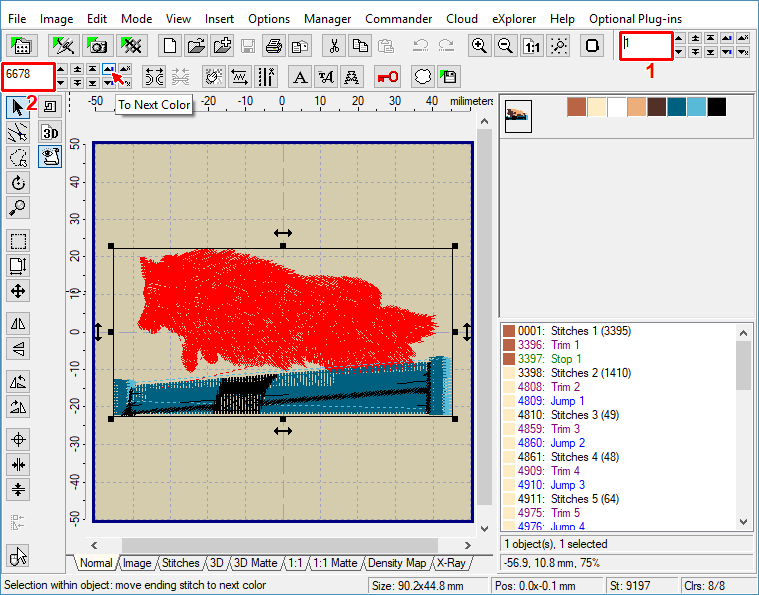
3 - In this example we want to split the design below into two parts: dog and barrier. The barrier has colors different from dog colors. Set "Initial Stitch" to 1. To find the last stitch of the dog (being the same as initial stitch of the barrier), click several times on "To Next Color" button, which is located to the right of "Ending Stitch" box. Selected part of embroidery, i.e. stitches 1 to 6668 are drawn in red color (Picture No. 1).
1. Setting Ending stitch
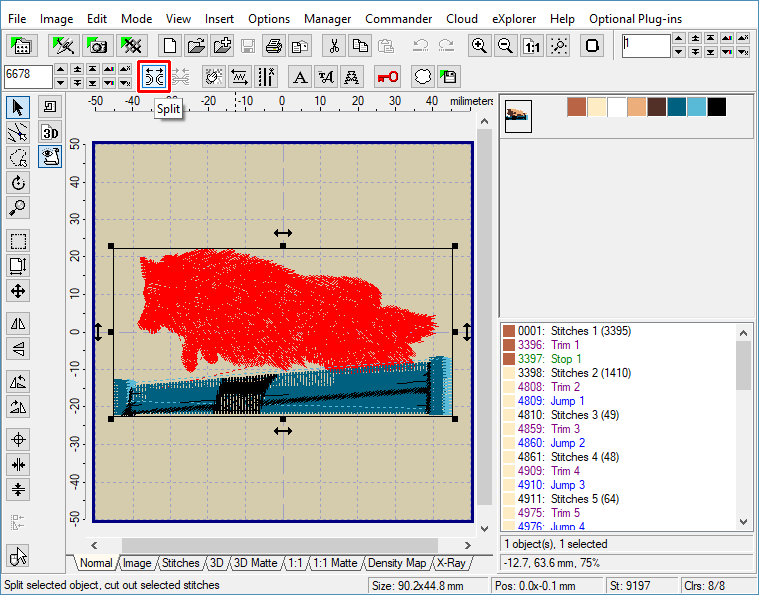
4 - Once the stitches are selected, click the "Split" button to separate the red selection into an individual object (Picture No. 2).
2. Separate the red selection
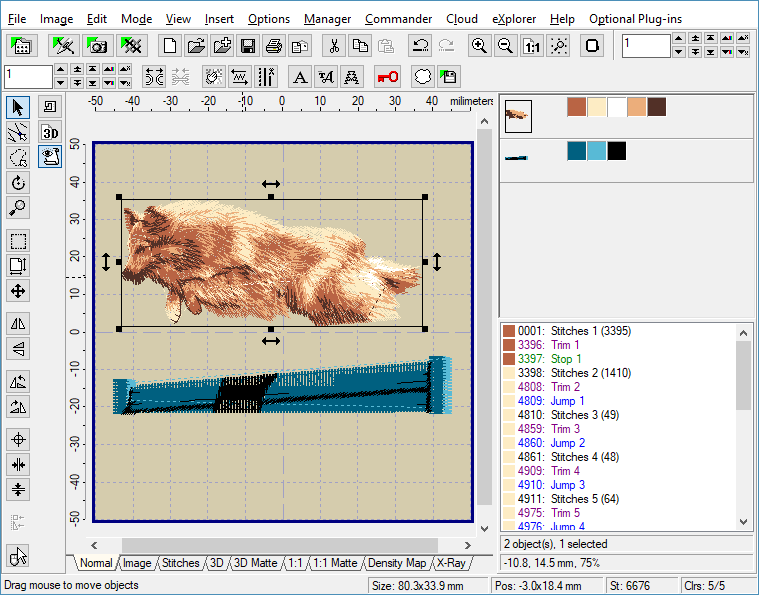
5 - Now there are two independent objects in work area - dog and barrier - as you can see them on the Objects Order Bar at the right side of the screen (Picture No. 3). To save the first object (dog) into a file click the left mouse button on this part. This will select the object.
6 - Use "File -> Save Selected As" command to save selected object to a file on your disk. Specify the format and the file name of the new design in the dialog boxes which appear on the screen.
3. Separated objects
7 - Click left mouse button on the barrier object to select it.
8 - Use "File > Save Selected As" command to save this object to a file on your disk. Specify the format and the file name of the new design in the dialog boxes which appear on the screen.
9 - When finished, use "File > Exit" menu to exit Editor.