

Navigate
Products
Download
eShop
Upgrade
About
Training
Support


Navigate
Products
Download
eShop
Upgrade
About
Training
Support


Aligning stitches can be added horizontally, vertically, diagonally or all three. Typical usage of aligning stitches is for designs which are larger than your hoop size, and therefore must be split into usable parts. Aligning stitches simplify the positioning of the various parts in the hoop when embroidering, allowing you to match up the split parts.
1 - Run Embird and click "Editor" menu to switch to Editor window.
2 - Open the file you want to edit. To open a design, click "File" menu and choose "Open" command.
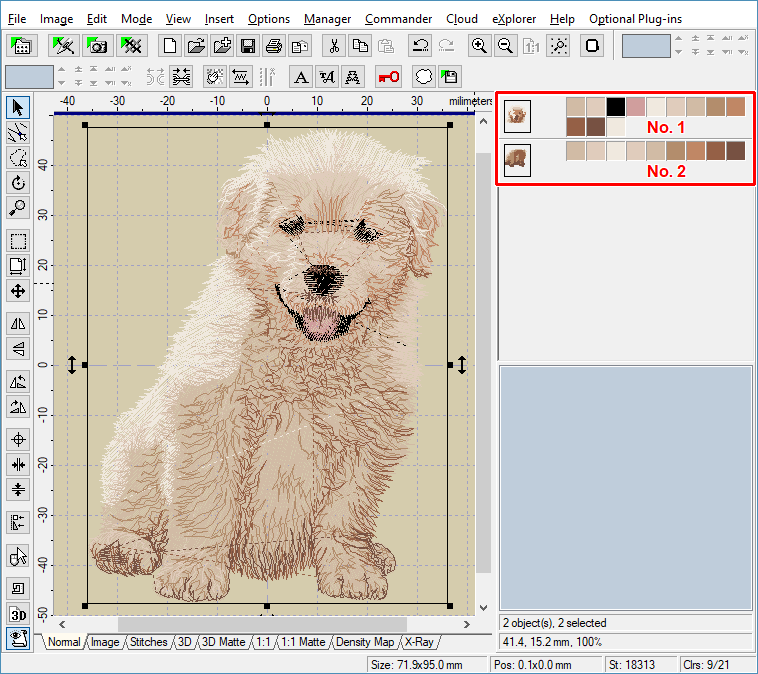
3 - Split the design into the appropriate number of parts. In our example the design was split into 2 parts: top and bottom. These parts can be seen in the "Objects Order Bar" at the right side of the screen (Picture No. 1). Read the Interactive Freehand Splitting tutorial to find out how to split a design.
1. Split design
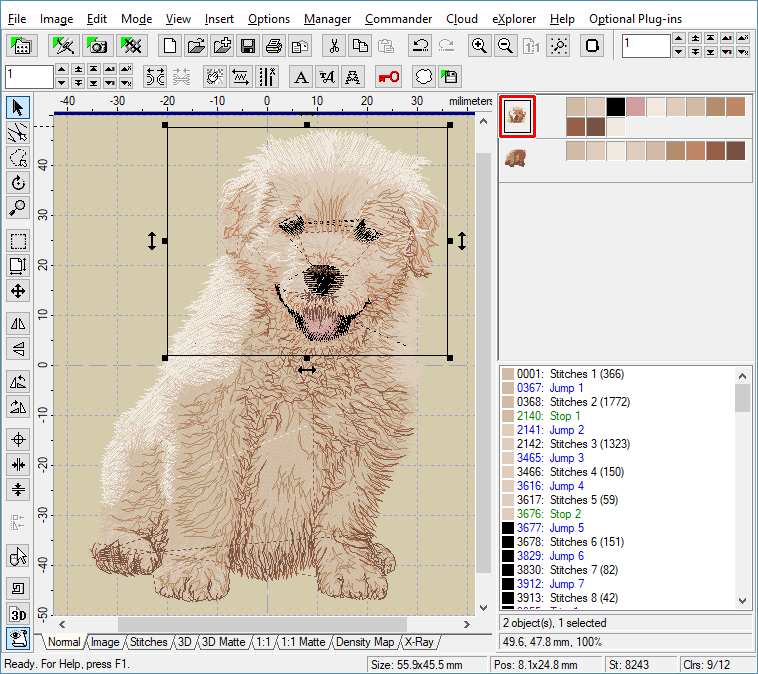
4 - First we want to add the aligning stitches to the top part. Click on the top part to select it. When it is selected, a frame is drawn around it (Picture No. 2).
2. Select the first part of design
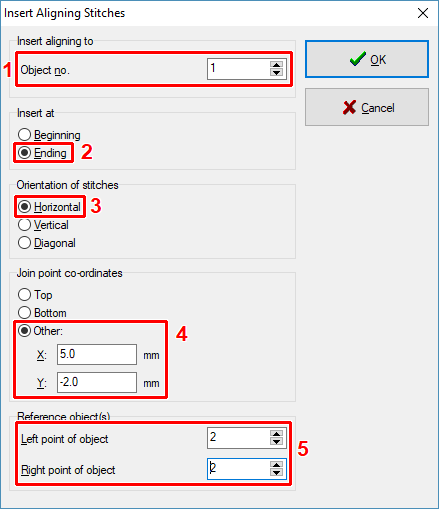
5 - Click on the "Insert" menu and choose the "Aligning Stitches" command. A dialog box appears on the screen (Picture No. 3).
6 - Notice the object order at the right side of screen: Object no. 1 is the top part of design, object no. 2 is the bottom part. We want to insert the horizontal aligning stitches to the end of the top part. We have chosen the join point co-ordinates X: 5.0 mm, Y: -2.0 mm (see also Insert Aligning Stitches tutorial).
The bottom part of design is wider than the top part, and because we want the aligning stitches in the top part to match the corresponding points in the bottom part, we will choose the reference object no. 2 (Picture No. 3).
3. Insert aligning stitches to the first object
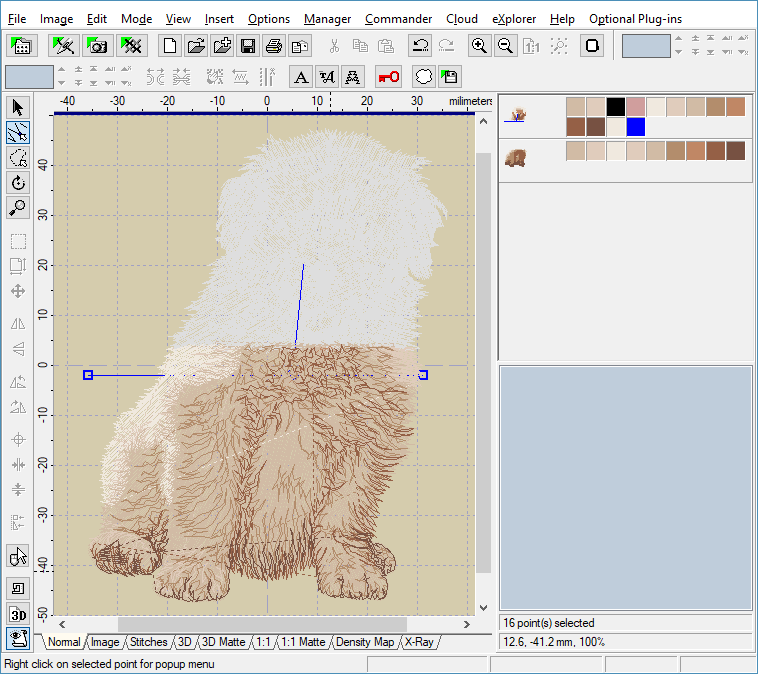
7 - Three new aligning points were automatically added to the end of the top part (Picture No. 4). The first point is at the co-ordinates of the join point. The second point is the left one and the third point is the right one. The left and right points have the same Y co-ordinate as the join point. Their X co-ordinates are determined by the left and right edges of reference object specified in the dialog box above.
4. New aligning points added to the first object
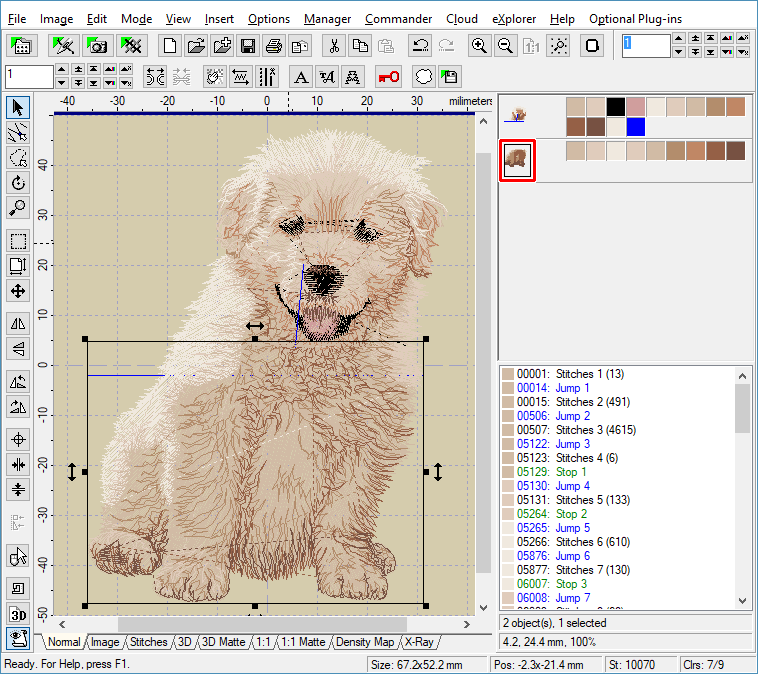
8 - We are going to repeat the same process with the bottom part. Choose "Mode > Select Mode" to switch into select mode. Then click on the bottom part to select it (Picture No. 5).
5. Select the second part of design
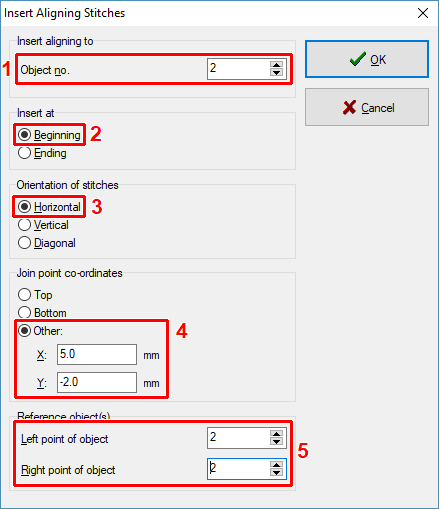
9 - Click on the "Insert" menu and choose the "Aligning Stitches" command. A dialog box appears on the screen. We want to insert the horizontal aligning stitches to the beginning of the bottom part, i.e. to object no. 2. The join point co-ordinates are the same as for the top part: X: 5.0 mm, Y: -2.0 mm. Reference object for left and right aligning point is object no. 2, because it is wider than object no. 1 (Picture No. 6).
Picture No. 6
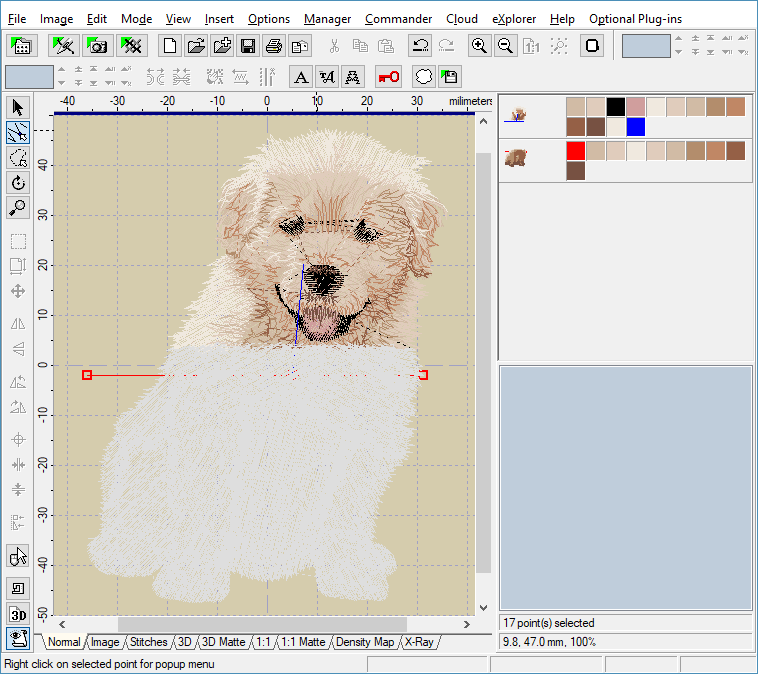
10 - Three new aligning points were automatically added to the beginning of the bottom part (Picture No. 7).
7. New aligning points added to the second object
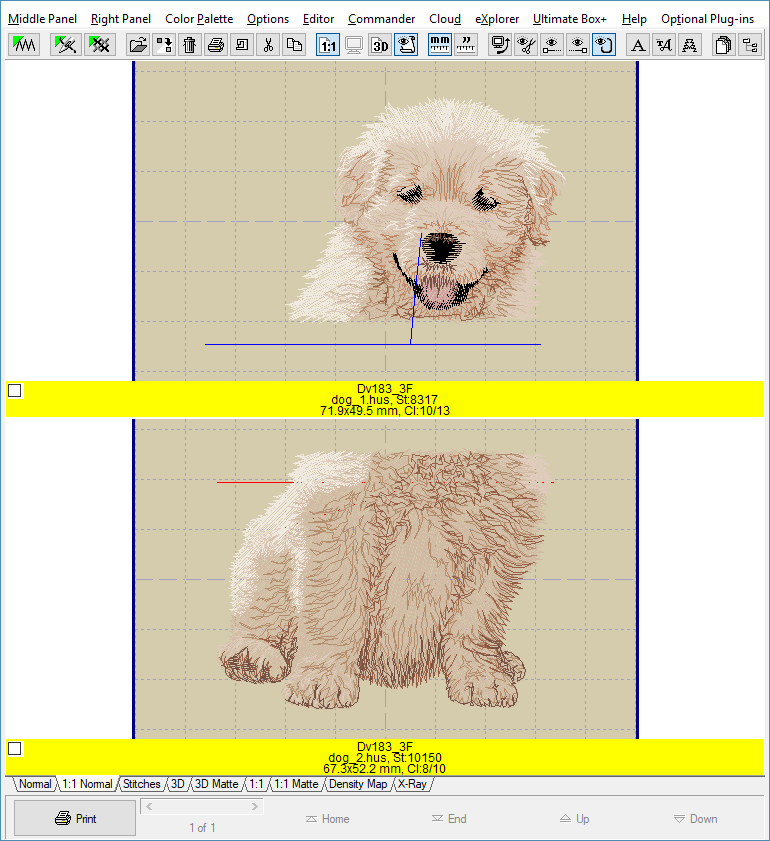
11 - Save these design parts to separate files using "File > Save Separated As" menu. Then switch to Manager and check design parts (Picture No. 8).
8. View design parts in Manager
Tips:
1 - In a design split into three or more parts, the aligning stitches are inserted at the end of the top section, at both the beginning and end of any "middle" sections and at the beginning of the bottom section.
2 - Do not forget to add tie-off/on stitches just before the "Ending" aligning stitches and after the "Beginning" aligning stitches. Use "Insert > Tie On/Off Stitches" menu to add these stitches to selected objects.
3 - When sewing the design out, sew out the first section and leave the aligning stitches in. Re-hoop the fabric or move the hoop and use the adjustments on your machine so that the first aligning stitches of the next part sit exactly on top of the previous section. Then sew out. Complete the design and finally remove all aligning stitches.