Navigate
Products
Download
eShop
Upgrade
About
Training
Support


Navigate
Products
Download
eShop
Upgrade
About
Training
Support


Use this command if you want to edit the summary information of the design. This allows you to add the "Title", "Subject", "Author", "Category", "Keywords", "Revision Number" and "Comments" to your design. These information will be displayed in the yellow hint when you display the design in Manager and place the mouse pointer on the preview area. Also, once you add the summary information to your designs, you can use the "Right Panel > Folder Operations > Search" command to search for design with specified "Keyword", etc. (see also Search Files tutorial).
Warning: File Summary Info command works only on PCs with disks formatted with NTFS file system (i.e. it does not work with FAT system).
Note: The "File Summary Info" will be lost if you copy the design from NTFS disk to e.g. FAT disk, because FAT disks do not support the streams required for storing the info.
1 - Run Embird, it will start in "Manager" mode.
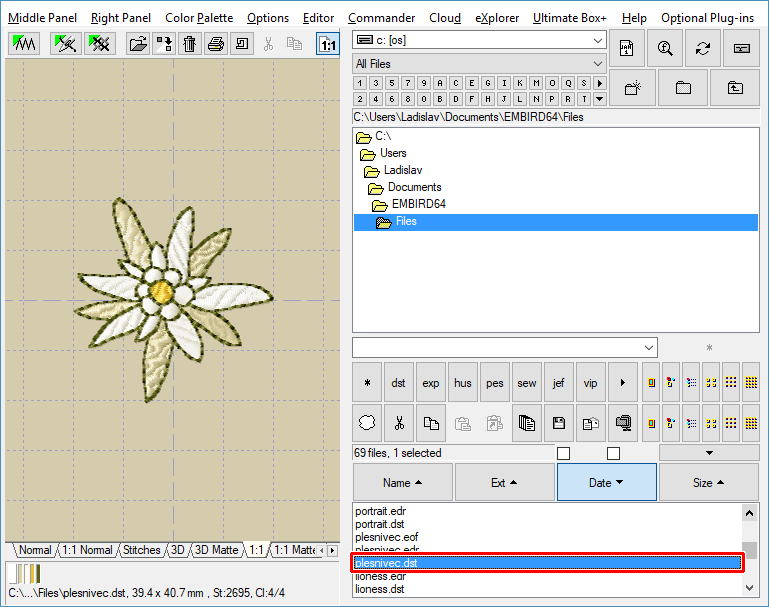
2 - In the "Files:" box at the right side of the screen select the design whose "Summary Info" you want to modify. To select a design, please move the mouse pointer to its file name and click the left mouse button (Picture No.1).
Note: You can select multiple files if you want to set the same summary information to several designs.To select multiple designs, please move mouse pointer to the file name of the first design in the "Files:" box at the right side of the screen, depress the left mouse button and hold it down while moving the mouse pointer over the file names of the other designs. When the mouse pointer is over the last design, please release the left mouse button. Another way is to press CTRL or SHIFT key and left click the file name.
1. Select File
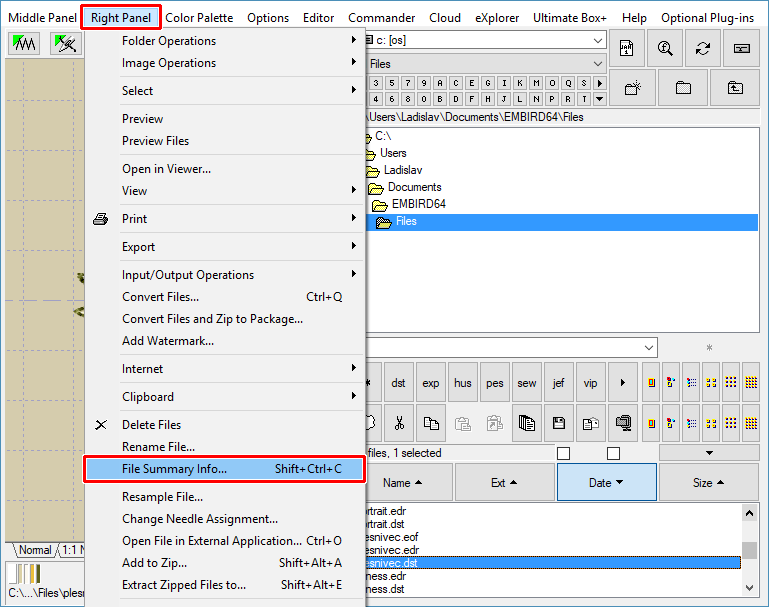
3 - Select "Right Panel > File Summary Info" command from main menu (Picture No. 2).
2. Select "Right Panel > File Summary Info" menu
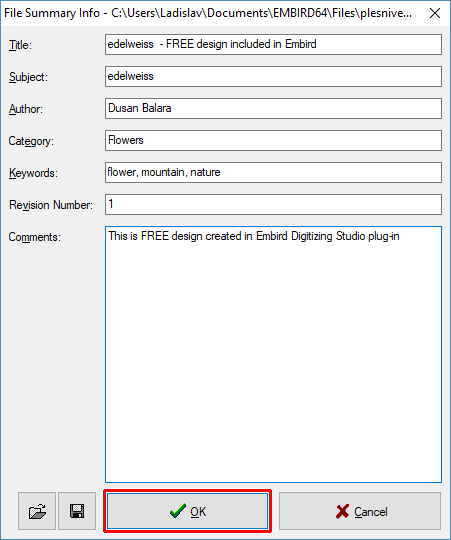
4 - The "File Summary Info" dialog box will appear on the screen (Picture No.3). Enter the information and hit "OK" button to confirm these properties.
3. Enter File Summary Info
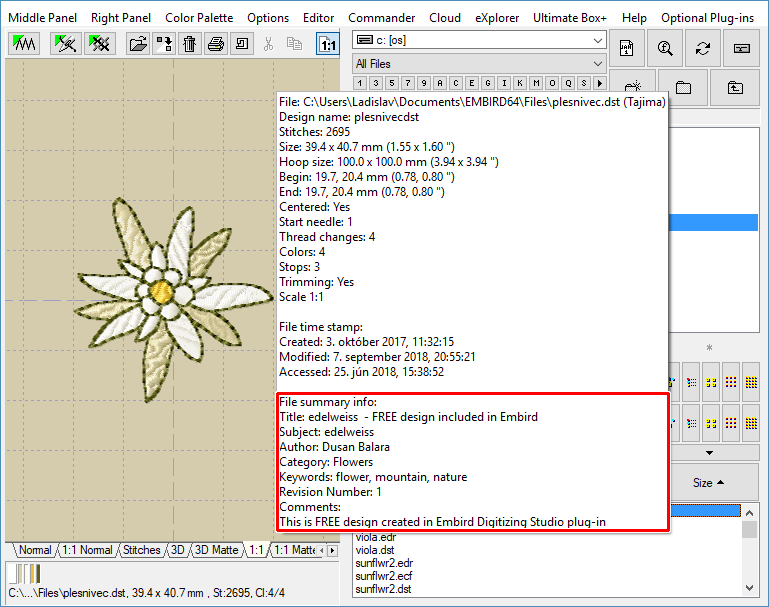
5 - Double click the file name in the "Files:" box to display it. The file summary information will be displayed at the bottom of the yellow hint, which appears when you move mouse cursor on the preview area (Picture No.4).
Note: In case the yellow hit does not appear after a while, switch ON the displaying of hints in "Options > Show > Show Hints" menu.
4. View file and check its summary info