Navigate
Products
Download
eShop
Upgrade
About
Training
Support


Navigate
Products
Download
eShop
Upgrade
About
Training
Support


1 - Run Embird, it will start in "Manager" mode.
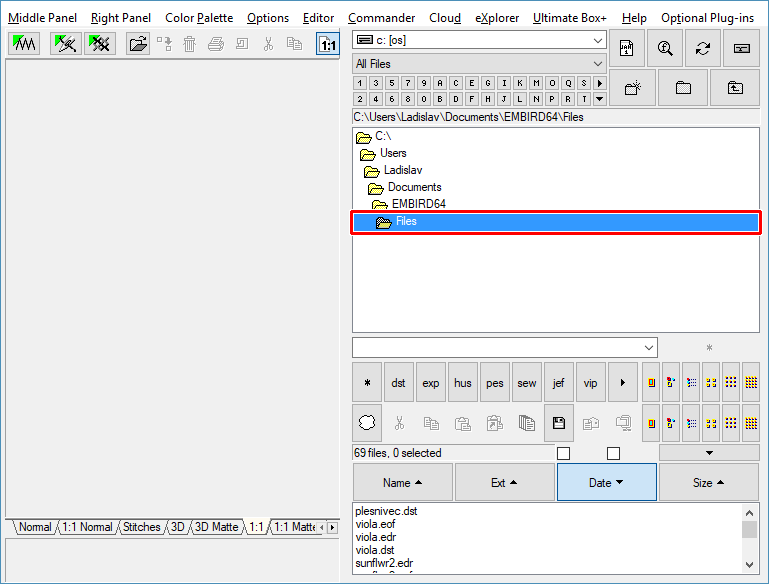
2 - Select the folder in "Folder:" box at right panel (Picture No.1). Embird will search for files in this folder and in all its subfolders.
1. Select folder
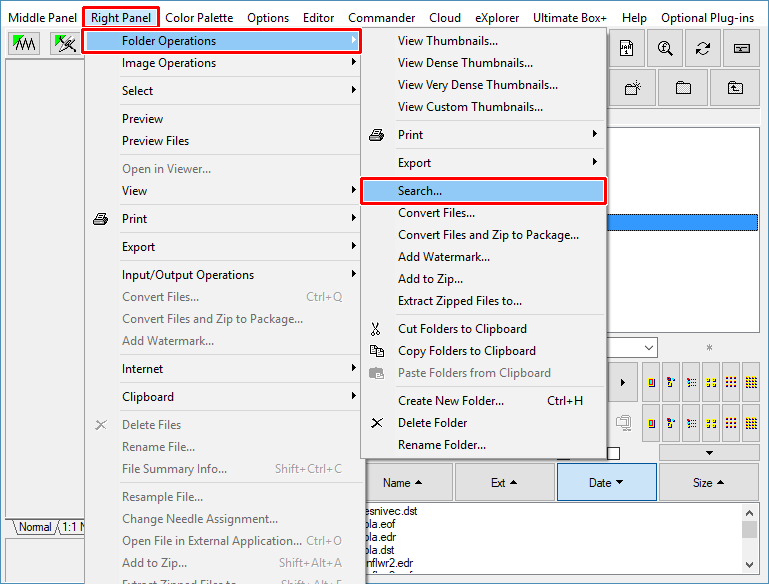
3 - Select "Right Panel > Folder Operations > Search" menu (Picture No.2).
2. Select "Right Panel > Folder Operations > Search" menu
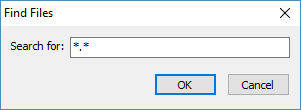
4 - A dialog box will appear on screen, allowing you to specify the filter for searching files (Picture No. 3). In this example, we want to search for file with any name and with any extension. You can specify different search criteria, e.g. "squirrel.*" if you want to search only for designs with filename squirrel and any extension, or you can specify e.g. "*.dst" if you want to search for designs with any name, but with .dst extension. Click "OK" button to continue.
3. Specify file filter
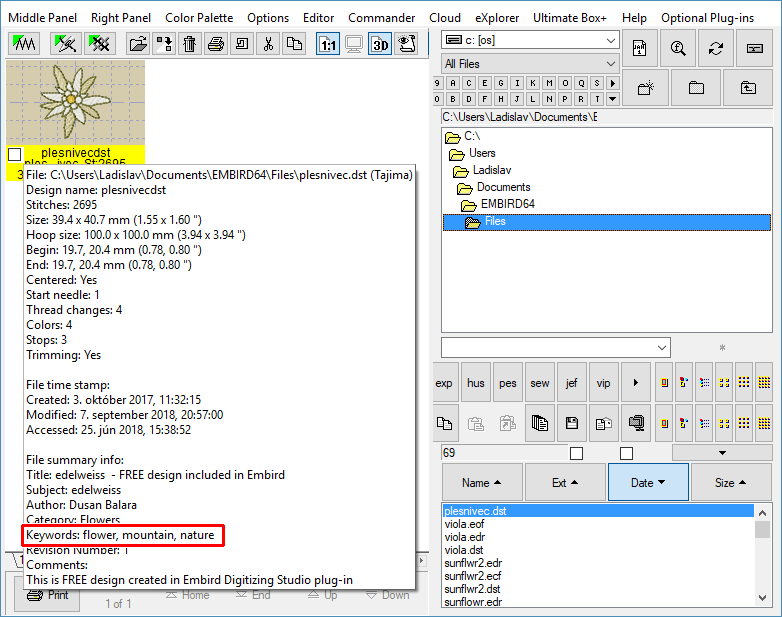
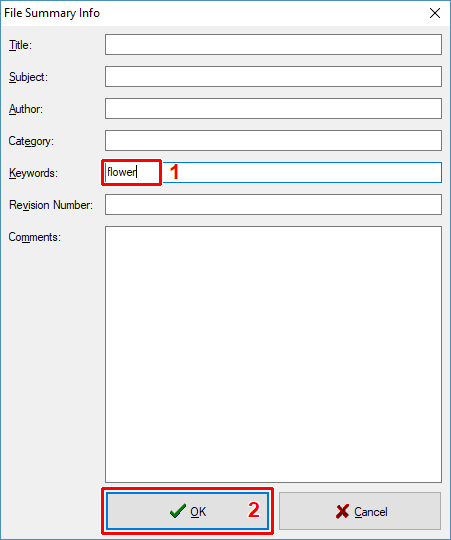
5 - Another dialog box will appear on screen, allowing you to specify additional search criteria (Picture No.4). In this example we want to find a design containing "flower" in keywords (see also File Summary Info tutorial). These boxes might be left blank in case no additional criteria are required. Click "OK" button to continue.
4. Search criteria based on File Summary Info
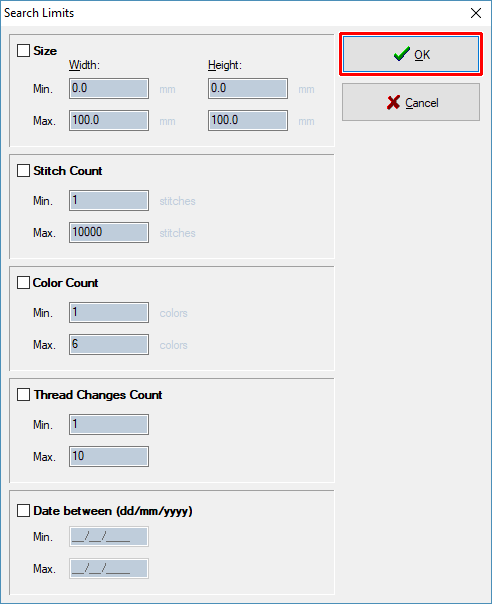
6 - Another dialog box will appear on screen, allowing you to specify additional search limits (Picture No. 5). Click "OK" button to continue.
5. Specify search limits
7 - Embird will search in chosen folder and all its subfolders for the designs matching the search criteria. Once the search process is finished, the results are displayed as thumbnails (Picture No. 6).
6. Search results