Navigate
Products
Download
eShop
Upgrade
About
Training
Support


Navigate
Products
Download
eShop
Upgrade
About
Training
Support


This tutorial explains how to use Font Engine plug-in with fonts which are not installed in Windows system. All fonts which are installed in Windows use system resources and therefore they slow down the whole operating system. However, Font Engine plug-in is capable of supporting those fonts which are not installed in Windows system. This means that you can use hundreds of fonts you have stored on your CD, DVD or on your hard disk.
Note: There are no True Type nor Open Type fonts included in Font Engine. Font Engine is just the engine, which is capable of converting fonts you acquire into stitches.
Read the following tutorial to find out how to use not installed fonts in Font Engine:
1 - Run Embird and click "Editor" menu to switch to Editor window.
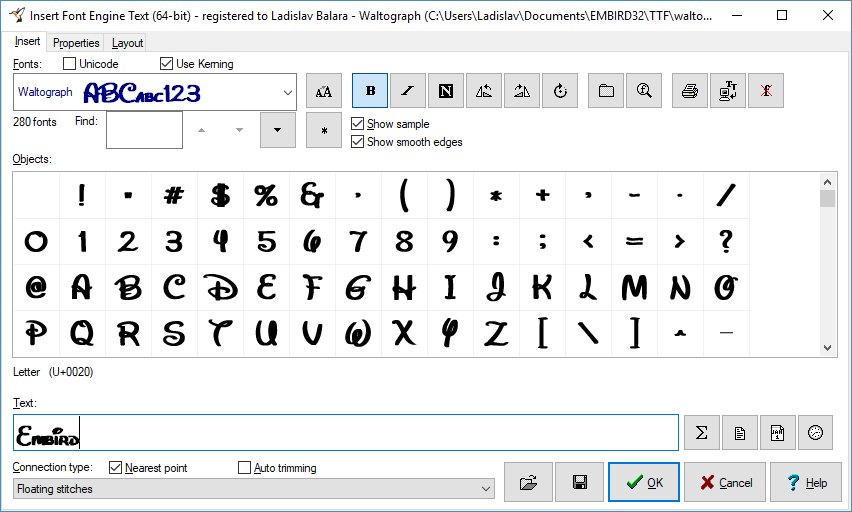
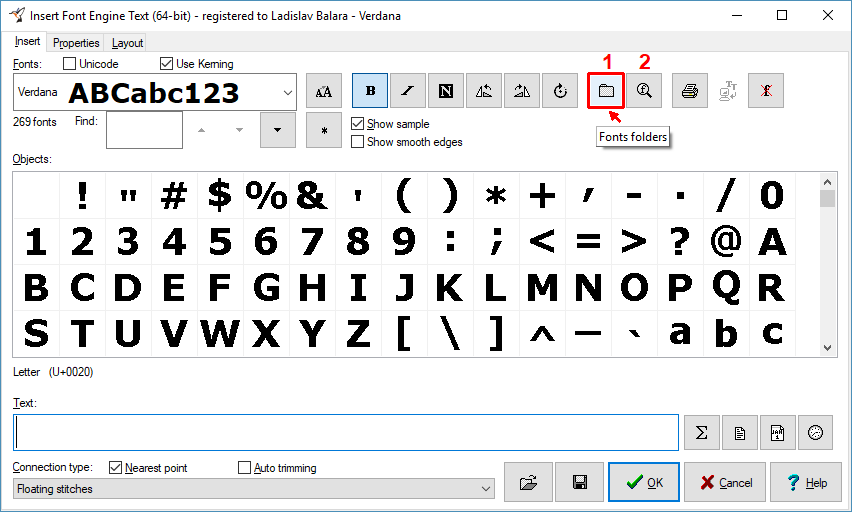
2 - Select "Insert > Font Engine Text" menu to create lettering from True Type or Open Type fonts (Picture No. 1). Please note the two buttons located at the right side of the "Fonts" box. The first one allows you to specify three folders with your "not installed" fonts. Embird will scan these folders and all their sub-folders for fonts and add found fonts to the "Fonts" box once the scanning is finished. Use the second button for scanning folders for new fonts (use it only when you copy some new fonts to these folders and you want to let Embird know about the changes).
3 - Click "Fonts Folders" button to specify your folders containing "not installed" fonts.
1. Click "Fonts Folders" button
4 - A dialog box will appear on the screen, allowing you to choose three folders (Picture No. 2).
Note: Embird will not copy the fonts; it assumes that you already have them in these folders. Please use Windows Explorer to copy the fonts into the folders before running Embird.
2. Folders containing fonts
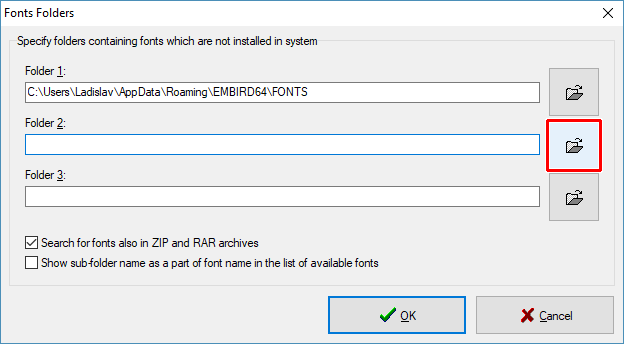
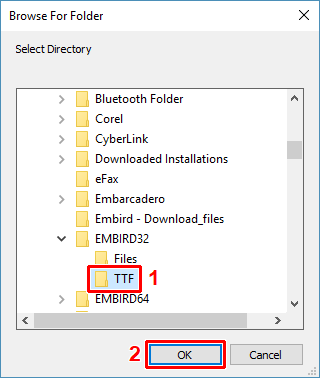
5 - Click the small "folder" button (Picture No. 2) to choose the folder from the list (Picture No. 3).
Note: Embird will scan this folder and also all its sub-folders for fonts.
3. Select folder with .TTF or .OTF font files
6 - Embird will add the new folder to the dialog box (Picture No. 4). The "Search for fonts also in ZIP and RAR archives" option allows you to enable/disable the searching for fonts in compressed files.
4. Selected folder
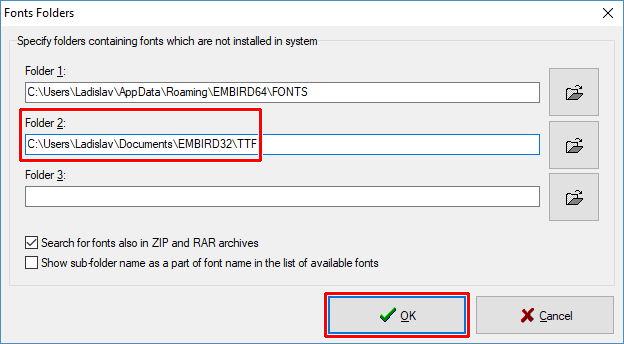
7 - Click "OK" button to confirm the new settings. The scanning process will start and it may last for several minutes, depending on the number of fonts you have stored in the chosen folders.
8 - Once the scanning process is finished, the recognized fonts will be added to the " Fonts" box and you can use them as normally installed fonts (see also Font Engine Plug-in tutorial). The "not installed" fonts are drawn in blue color in the "Fonts" box (Picture No. 5).
5. New font on the list