

Navigate
Products
Download
eShop
Upgrade
About
Training
Support


Navigate
Products
Download
eShop
Upgrade
About
Training
Support


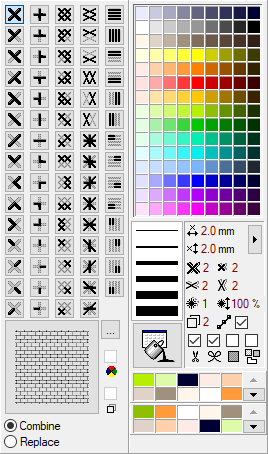
Color Palette Bar is located at the right side of the screen (Picture No. 1). It contains color palette and also several settings which affect the cross stitch design - e.g. cross size, number of threads to use for each cross, whether the outlines should be added automatically, trimming codes inserted, etc. Each control is explained below.
1. Color Palette Bar
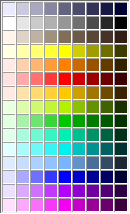
This palette contains available colors. Double-click on the color to change the color in the palette. Right click on the color to display the popup menu, which allows to choose color from thread catalogs. You can also drag the color from this palette to the right side of screen and drop it to the boxes for Cross color 1, Cross color 2, Outline color or Background color (see also Design Toolbar).
The chosen color will be applied when you draw new crosses, outlines or French knots in Work Area. It does not affect existing crosses, outlines and French knots.

Cross width in millimeters. Left click on the number to increase it, right click on the number to decrease it. Click on the icon to display a dialog box with preset values.
This setting is global and it relates to regular crosses. The mini and vertical crosses have half of specified width.

Cross height in millimeters. Left click on the number to increase it, right click on the number to decrease it. Click on the icon to display a dialog box with preset values.
This setting is global and it relates to regular crosses. The mini and horizontal crosses have half of specified height.


Number of threads to use for crosses of chosen type. This must be even number. Left click on the number to increase it, right click on the number to decrease it. Click on the icon to display a dialog box with preset values.
These settings can have either global or local appliance: If you create a design and all regular crosses have the same layers setting (e.g. 2), then this setting has global appliance and when you modify it (e.g. change to 4), the design would be compiled with this new setting for all regular crosses. On the other hand, if you create a design with various areas having different number of layers (e.g. 2 in one area, and 4 in another area), then the design would be compiled with these settings and the current setting of Layers parameter is ignored - it has meaning only when you draw new regular crosses in Work Area.

Number of threads to use for outlines. Left click on the number to increase it, right click on the number to decrease it. Click on the icon to display a dialog box with preset values.
This setting can have either global or local appliance: If you create a design and all outlines have the same layers setting (e.g. 2), then this setting has global appliance and when you modify it (e.g. change to 4), the design would be compiled with this new setting. On the other hand, if you create a design with various outlines having different number of layers (e.g. 2 for one outline, and 4 for another outline), then the design would be compiled with these settings and the current setting of Outline Layers parameter is ignored - it has meaning only when you draw new outlines in Work Area.


Thickness (layers) and diameter of French knots. Left click on the number to increase it, right click on the number to decrease it. Click on the icon to display a dialog box with preset values.
These settings can have either global or local appliance: If you create a design and all French knots have the same thickness/diameter setting, then these settings have global appliance and when you modify them, the design would be compiled with these new settings. On the other hand, if you create a design with various French knots having different thickness/diameter setting, then the design would be compiled with these settings and the current setting of Thickness/Diameter parameter is ignored - it has meaning only when you draw new French Knots in Work Area.

If ON, the trimming codes are inserted into the cross stitch design when it is compiled into stitches.

If ON, the tie on/off stitches are inserted to the cross stitch design. when it is compiled into stitches.

If ON, the outlines are created automatically when the cross stitch design is compiled into stitches.
The number of thread strands (layers) are determined by "Outline Layers" setting - see above.

If ON, the outlines around each color are created automatically when the cross stitch design is compiled into stitches.
The number of thread strands (layers) are determined by "Outline Layers" setting - see above.
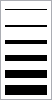
Use this control to choose the pen width. This control is not always visible, only when particular tools are used (Pencil, Line, etc. - see also Design Toolbar).
The chosen pen width is applied when you draw new crosses in Work Area; it does not affect existing crosses.
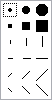
Use this control to choose the brush type. This control is not always visible, only when particular tools are used (Brush, Air-brush, etc. - see also Design Toolbar)
The chosen brush type is applied when you draw new crosses in Work Area; it does not affect existing crosses.

Click this button to display a dialog box, in which you can change the fill properties, such as filter and color gradient.
The chosen fill properties will be applied when you draw new crosses in Work Area; they do not affect existing crosses.
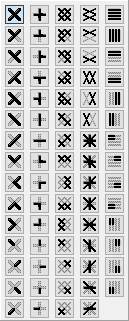
Use this control to choose the cross type: normal cross, mini-cross, elongated horizontal cross, elongated vertical cross, upright cross, double cross, or their parts: 3/4 cross, half cross, quarter cross. If you choose e.g. 3/4 cross stitch type, this stitch can be combined with another quarter stitch of different color.
The chosen cross type will be applied when you draw new crosses in Work Area; it does not affect existing crosses.
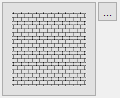
The Fill Pattern can be chosen as cross type. The list of available pre-defined patterns will appear after clicking the "..." button. It is possible to create new fill pattern - see the Creating New Fill Pattern tutorial.
The chosen fill pattern will be applied when you draw new crosses in Work Area; it does not affect existing crosses.


The Keep Pattern Colors setting determines whether the colors are kept or not in the fill pattern. It has meaning only for multi-color fill patterns. In case the colors are kept, the Cross Stitch will ignore the currently selected color, and it will use the colors defined in the pattern. In case this setting is off, Cross Stitch will replace all colors in pattern with currently selected color.
The Keep Pattern Layers setting determines whether the number of layers is kept or not in the fill pattern. This affects the layer settings of regular, horizontal, vertical and mini crosses, as well as back stitch lines. It has meaning only for patterns with different layer settings. In case the layer settings are kept, the Cross Stitch will ignore the currently selected layer setting, and it will use the layer settings defined in the pattern. In case this setting is off, Cross Stitch will replace all layer settings in pattern with currently selected layer settings.

The Combine and Replace options determine how the Cross Stitch will handle the situation if you put two crosses into the same cell in work area. For example, if you put normal "X" cross and upright "+" cross into the same cell, then in case the Combine is ON the result will be a double-cross "*", and in case the Replace is ON the result will be an upright "+" cross.
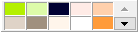
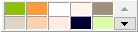
These panels contain the colors used for crosses (top panel) and colors used for back stitch lines and French knots (bottom panel). The order of colors determines the sewing order.
When you right click on the color on this panel, a popup menu will appear, containing several commands, allowing you to change color, show/hide color, delete color, change sewing order of colors, change number of layers (thread strands), insert outline around selected cross area, etc.
Use commands from this menu to edit properties of all crosses (or outlines and French knots) having the same color.