Navigate
Products
Download
eShop
Upgrade
About
Training
Support


Navigate
Products
Download
eShop
Upgrade
About
Training
Support


The following tutorial explains how to create screen saver file for Windows (.SCR) in Embird. Embird screen saver displays the simulation of sewing of selected designs when the computer is idle.
1 - Run Embird, it will start in "Manager" mode.
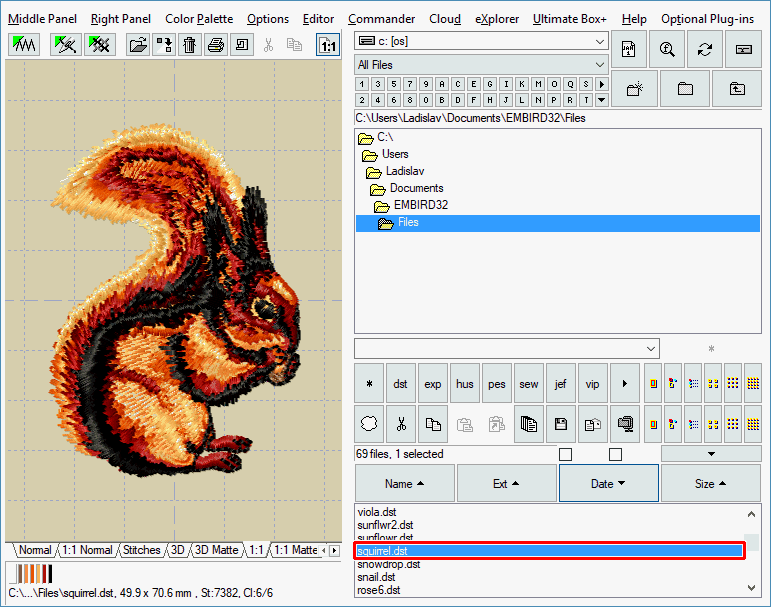
2 - In the "Files:" box at the right side of the screen select the design of which you want to create the screen saver. To select a design, please move the mouse pointer to its file name and click the left mouse button (Picture No.1).
Note: You can select multiple files if you want to create single screen saver which simulates sewing of several designs.To select multiple designs, please move mouse pointer to the file name of the first design in the "Files:" box at the right side of the screen, depress the left mouse button and hold it down while moving the mouse pointer over the file names of the other designs. When the mouse pointer is over the last design, please release the left mouse button.
1. Select file
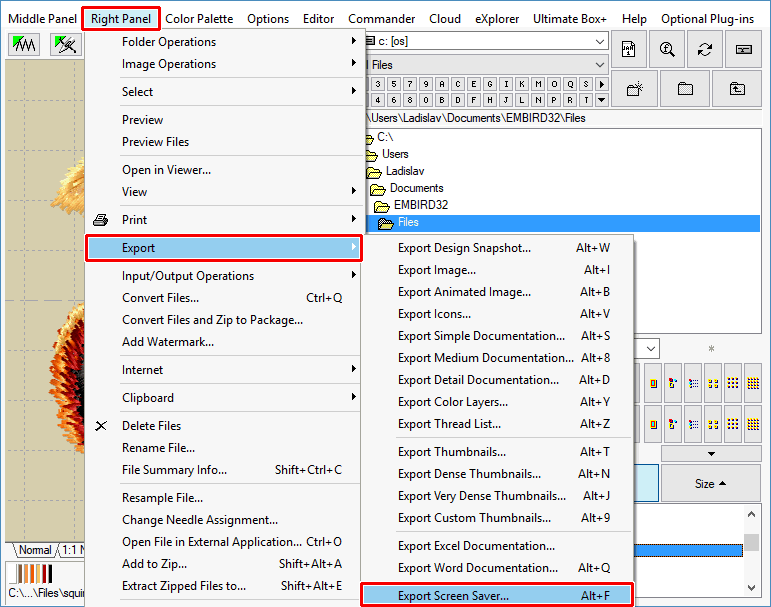
3 - Click "Right Panel > Export > Export Screen Saver" menu to create the screen saver file of the selected design (Picture No.2).
2. Select "Export Screen Saver" menu
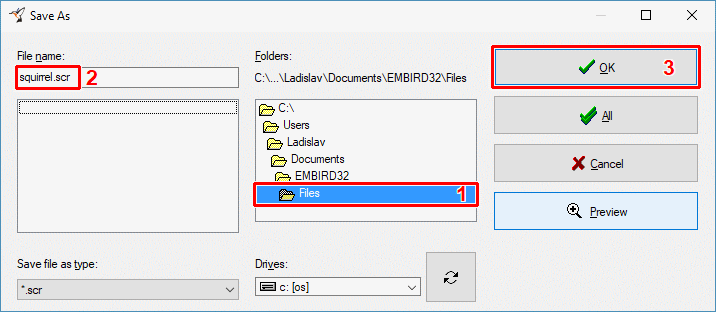
4 - Embird will prepare the screen saver and after a short while the "Save As" dialog box will appear on the screen, allowing you to save the screen saver file to chosen folder on your hard disk. Click "OK" button to continue.
Tip: Click "Preview" button in the "Save As" dialog box if you want to test the screen saver before saving.
3. Save to .SCR file
5 - The screen saver will be saved to chosen folder. Please copy this file in File Explorer to Windows folder (typically to C:\WINDOWS) to make it ready to use.
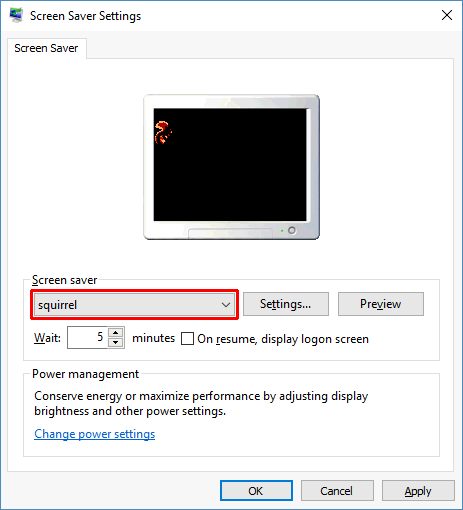
6 - Right click any empty area on Desktop, and select "Personalize > Lock screen > Screen saver settings", or click "Start > Settings > Control Panel > Display" menu to open the dialog box with Display properties. On the "Screen Saver" tab choose the new screen saver from the list of available options (Picture No. 4).
4. Select new screen saver
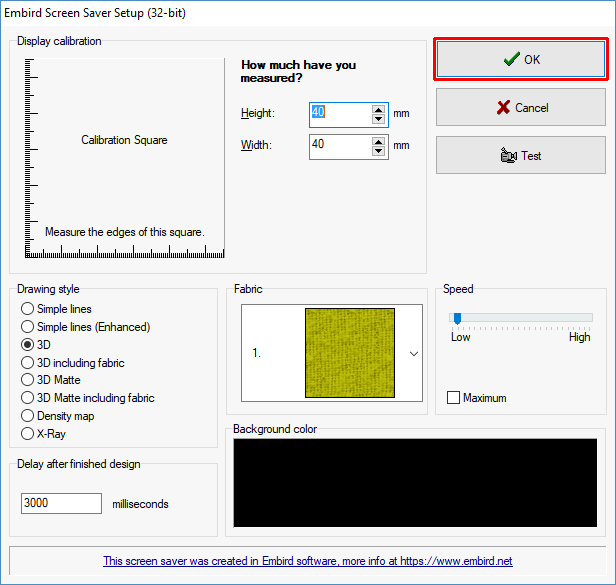
7 - Click "Settings" button if you want to modify some properties of the screen saver, such as "drawing style", "speed of simulation", "background color", etc. (Picture No. 5). Confirm the new settings by clicking "OK" button.
5. Screen saver settings
8 - When the computer is idle, the screen saver will start and the simulation of sewing of selected design will be shown on the screen (Picture No. 6).
6. Screen saver showing sewing of design