Navigate
Products
Download
eShop
Upgrade
About
Training
Support


Navigate
Products
Download
eShop
Upgrade
About
Training
Support


If you are displaying designs or images from Right Panel as "Thumbnails" or as "Dense Thumbnails", there is a check box shown at the left side of each thumbnail in its yellow area. Use this check box to mark some of the files while browsing through your designs or images, and then use "Select Marked Files" command in "Right Panel" menu to select the marked files in Right Panel. Finally, use e.g. "Delete Files" command from "Right Panel" menu to delete the selected (marked) files from your hard disk, or use any other command applicable for selected files (e.g. "Cut Files to Clipboard" and paste them into some other folder). This new mark feature allows you to sort designs easily.
1 - Run Embird, it will start in "Manager" mode.
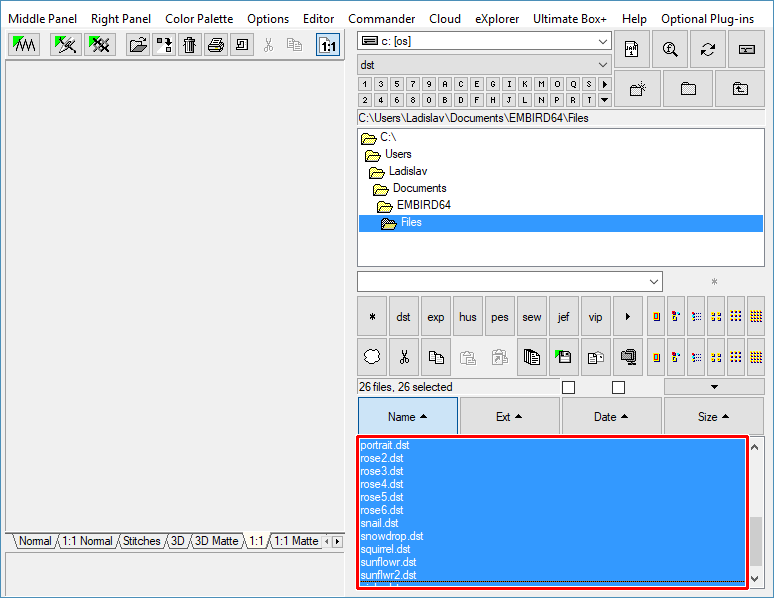
2 - Select the designs which you want to view as "Thumbnails". To select multiple files, please move mouse pointer to the file name of the first design in the "Files:" box at the right side of the screen, depress the left mouse button and hold it down while moving the mouse pointer over the file names of the other designs. When the mouse pointer is over the last design, please release the left mouse button.
1. Select multiple designs
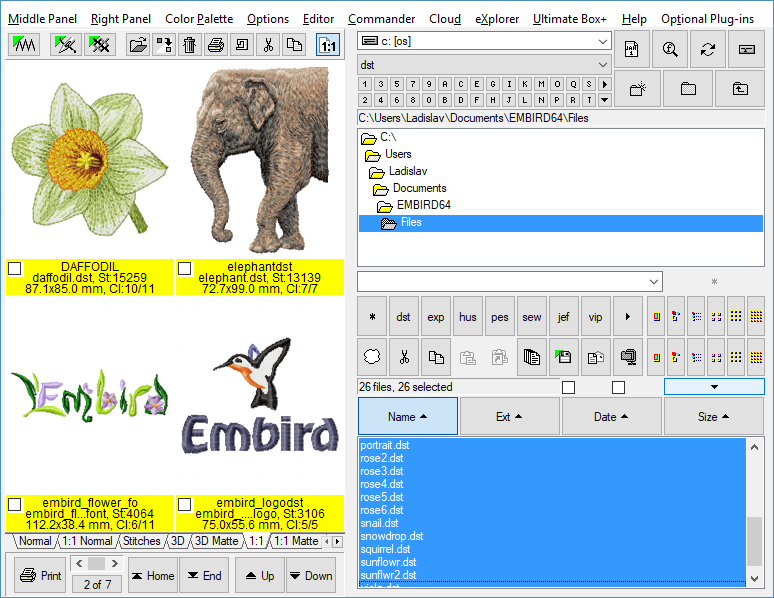
3 - Select "Right Panel > View > View Custom Thumbnails" command from the main menu (Picture No. 2). Notice the empty check boxes in the yellow area of each design.
2. View Custom Thumbnails
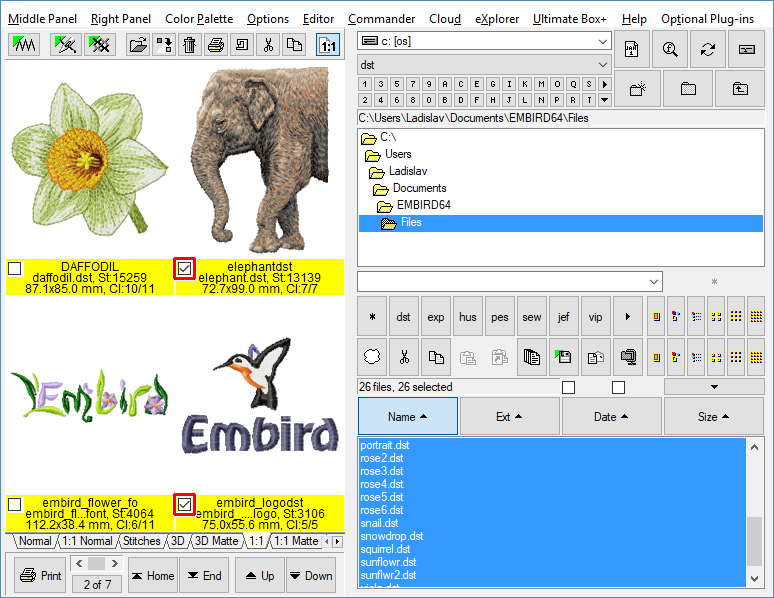
4 - Click the boxes to set them ON, i.e. to mark the files which you want to process, e.g. delete (Picture No.3). In this example, we have marked the following files: "elephant.dst" and "embird_logo.dst".
5 - Click "Down" button (located below the shown designs) if you want to mark designs also on the next page.
3. Mark two designs on this page
6 - In this example, we marked also another two files: "hedera3.dst" and "chair.dst" (Picture No.4).
4. Mark another pair of designs on next page
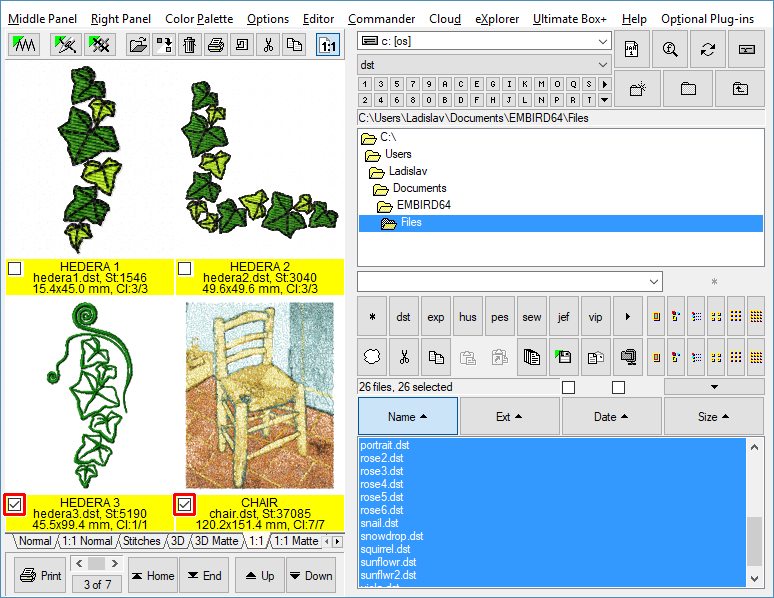
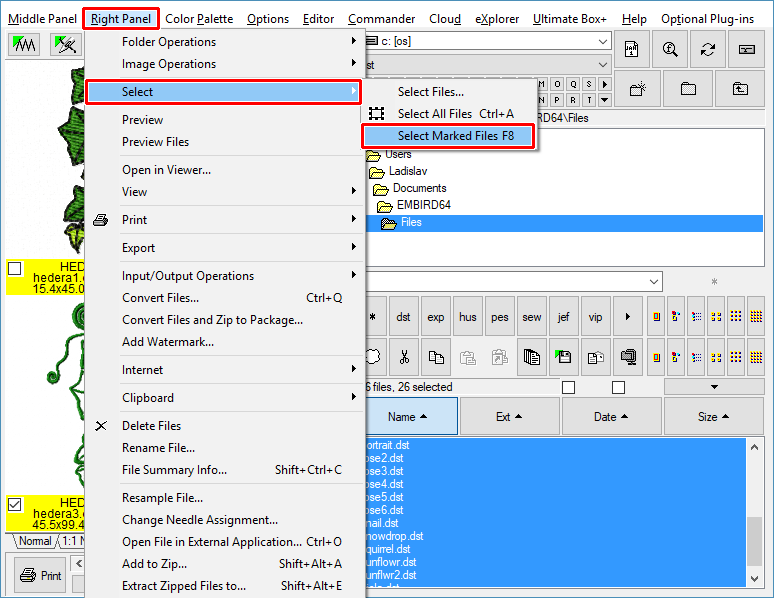
7 - If you have marked all the files you want to handle (e.g. delete), run "Right Panel > Select > Select Marked Files" command from the main menu (Picture No.5).
5. Select Marked Files
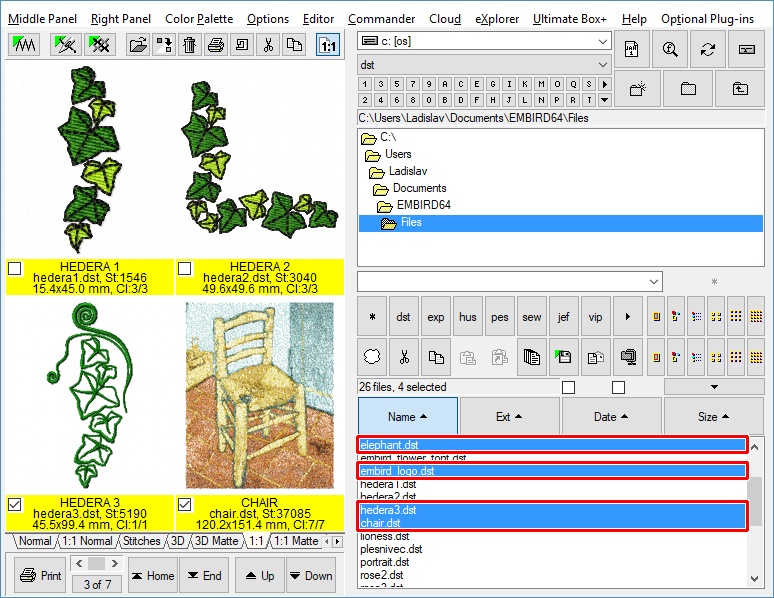
8 - Marked files will be selected in the "Files:" box in right panel (Picture No. 6). Now you can run "Right Panel > Delete Files" command from the main menu to delete these files.
6. Perform operation on selected designs
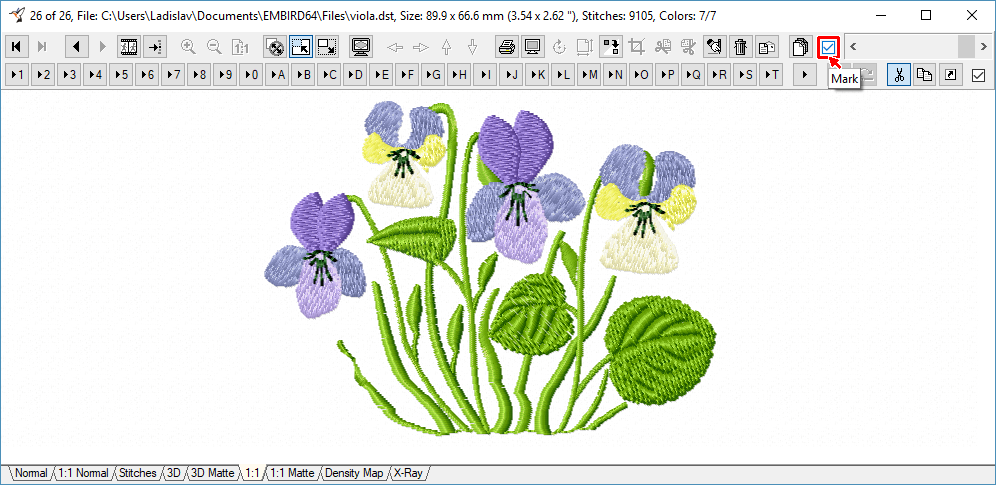
Note: The check box for marking files is also available in Viewer window (Picture No. 7). You can set this check box to ON while you are browsing through your designs or images in Viewer window, and then you can close this window and follow steps 7 and 8 to handle the marked files.
7. Check box for marking files in Viewer