

Navigate
Products
Download
eShop
Upgrade
About
Training
Support


Navigate
Products
Download
eShop
Upgrade
About
Training
Support


This tutorial explains how to view images (e.g. digital photos) in Embird. Supported image formats are: BMP, GIF, JPG, PCX, PNG, PSD, TGA and TIF. The steps described in this tutorial work not only with images, but also with designs.
1 - Run Embird, it will start in "Manager" mode.
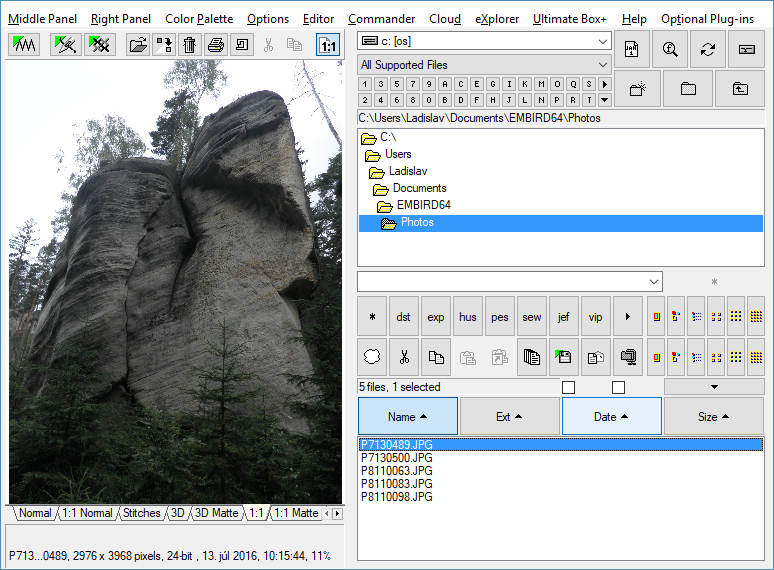
2 - In the "Files:" box at the right side of the screen double-click the file name of the image which you want to display. Move mouse pointer to the image file name and then double-click the left mouse button (Picture No. 1).
Note: The image scale is chosen according to settings in "Options > Image Scale" sub-menu. There are the following settings available: "Actual Size", "Auto-Shrink to Fit", "Auto-Enlarge to Fit".
Tip: The "Space" key will display the next file and the "Backspace" key will display the previous file in "Files:" box at Right Panel.
1. Double-click the file name to display image
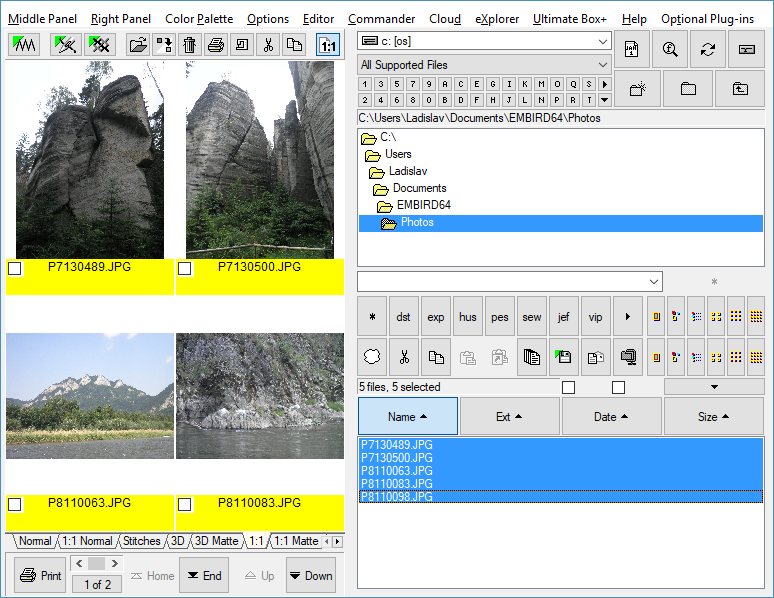
3 - You can also view the "Thumbnails" and the "Dense Thumbnails" of multiple selected images (Picture No. 2). To select multiple image files, please move mouse pointer to the file name of the first image file in the "Files:" box at the right side of the screen, depress the left mouse button and hold it down while moving the mouse pointer over the file names of the other images. When the mouse pointer is over the last image, please release the left mouse button. Once the files are selected, choose "View Thumbnails" (or "View Dense Thumbnails") command from "Right Panel" menu.
4 - When the images are displayed as thumbnails, the "browse" buttons (i.e. "Home", "End", "Up", "Down") appear at the bottom of the middle panel. Use these buttons to scroll to next or previous page of thumbnails, or to print the actual page of thumbnails.
2. View images as thumbnails
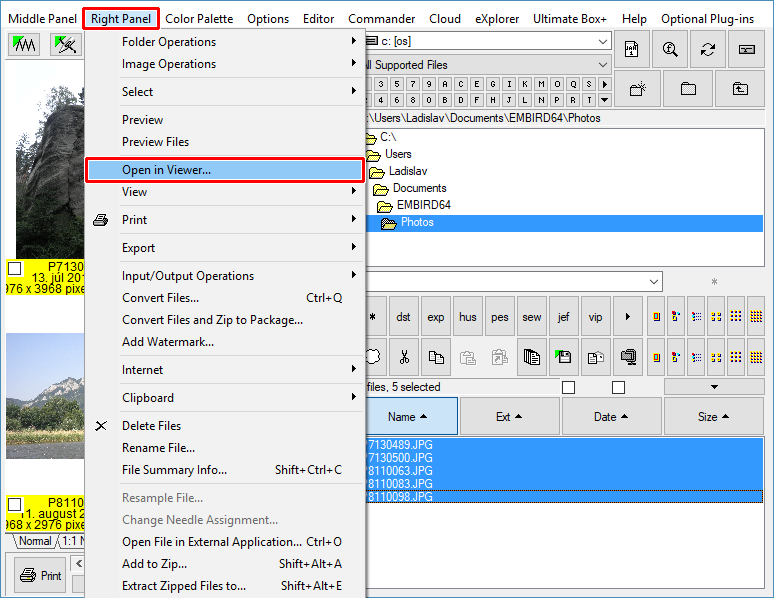
5 - You can also open an image in special Viewer window, which offers also some editing functions. To open the file in Viewer window, select it in "Files:" box at Right Panel and then choose "Open in Viewer" command in "Right Panel" menu (Picture No. 3).
3. Click "Right Panel > Open in Viewer" menu
6 - Another way of opening a file in Viewer window is to double-click on its displayed image (Picture No. 1). You can also select multiple files, view them as thumbnails, and then double-click on any thumbnail to open these files in the Viewer window (Picture No. 4).
4. Viewer window
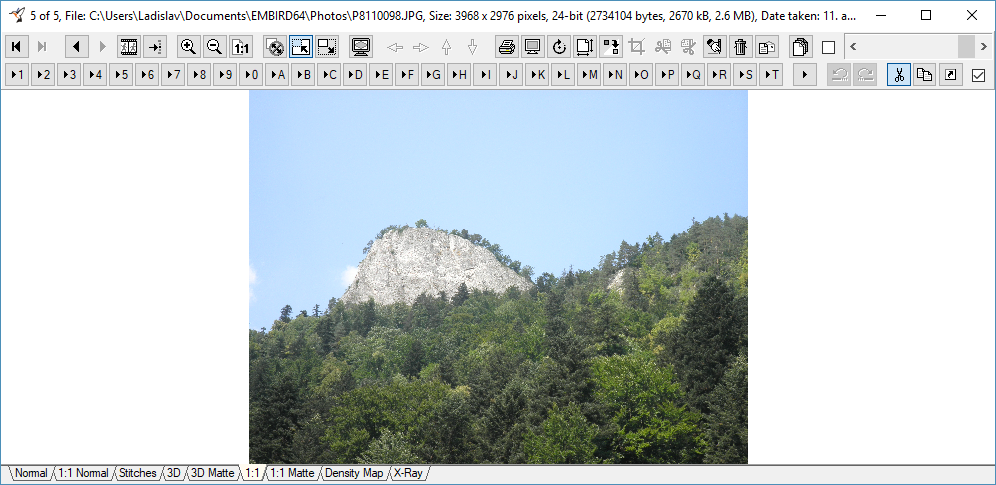
In Viewer window you can do the following:
- Display first image or design (press Home key)
- Display last image or design (press End key)
- Display previous image or design (press Page Up key, or Backspace)
- Display next image or design (press Page Down key, or Space)
- Start Slideshow (press S key, each image will be displayed 5 seconds)
- Display the image or design using Full Screen mode (press F key)
- Print image or design (press P key)
- Delete image or design (press Delete key)
- Rename image or design (press N key)
- Show File List (press L key)
- Close Viewer window and view the last selected file in Manager (press V key)
- Close Viewer window (press ESC key)
The following commands in Viewer window do not work with designs, only with images:
- Zoom In (press numpad + key)
- Zoom Out (press numpad - key)
- Zoom 1:1 (press Enter key)
- Actual Size (press numpad /)
- Auto-Shrink to Fit (press Ctrl and numpad -, the Actual Size must be off)
- Auto-Enlarge to Fit (press Ctrl and numpad +, the Actual Size must be off)
- Desktop Wallpaper (press D key)
- Rotate and Mirror (press R key)
- Set Size (press W or H key)
- Convert image to B&W, grayscale, or to 16- and 256-colors (press Insert key)
- Crop image (press C key). First select an area to crop by depressing the right mouse button and drawing a rectangle. Another way is to hold down the Ctrl key, depress left mouse button and draw a rectangle. Last way is to double-click on image and specify the rectangle size in the dialog box which appears on screen.